Communication protocols
Revo 1 hardware and firmware variants may support different protocols. Confirm the model, firmware, and physical interface before selecting a protocol.
| Protocol | Intended use | Public specification | Bus topology |
|---|---|---|---|
| Protobuf | Prosthetic-hand applications and neural-signal interfaces | No | One hand per connection |
| Modbus RTU | Robotics integration over RS-485 | Yes | Multiple addressed devices on one RS-485 bus |
| CANopen, CAN FD, and RealMan high-speed protocol | Variant-specific integrations | Confirm with BrainCo support | Depends on the interface and firmware |
Revo 1 variants
- Revo 1 Basic: SDK type
Revo1Basic; its capacitive-touch SKU isRevo1Touch. - Revo 1 Advanced: SDK type
Revo1Advanced; its capacitive-touch SKU isRevo1AdvancedTouch.
After connecting, get device information through the SDK. For Revo 1 Basic and Advanced, the SDK identifies the model from the device SN and returns the result in DeviceInfo.hardware_type. Applications use this result and capability checks to select APIs without parsing the SN themselves. Also check the serial number and firmware version.
| Public variant | SDK hardware_type | Motor API family | Touch capability |
|---|---|---|---|
| Revo 1 Basic | Revo1Basic / Revo1Touch | Revo 1 | Revo1Touch uses the Revo 1 capacitive-touch API |
| Revo 1 Advanced | Revo1Advanced / Revo1AdvancedTouch | Revo 2 | Revo1AdvancedTouch uses the Revo 1 capacitive-touch API |
“Revo 2 motor API” is an internal SDK protocol-capability classification. The product remains Revo 1 Advanced. Use the capability checks returned after discovery instead of selecting an API family from the product name. See Revo 1 Advanced for the integration path.
The existing register pages document the public Modbus RTU interface for Revo 1 Basic and its touch variant. Before implementing a Revo 1 Advanced protocol without the SDK, ask BrainCo technical support to confirm the device interface, firmware, and matching protocol revision.
Check the active protocol
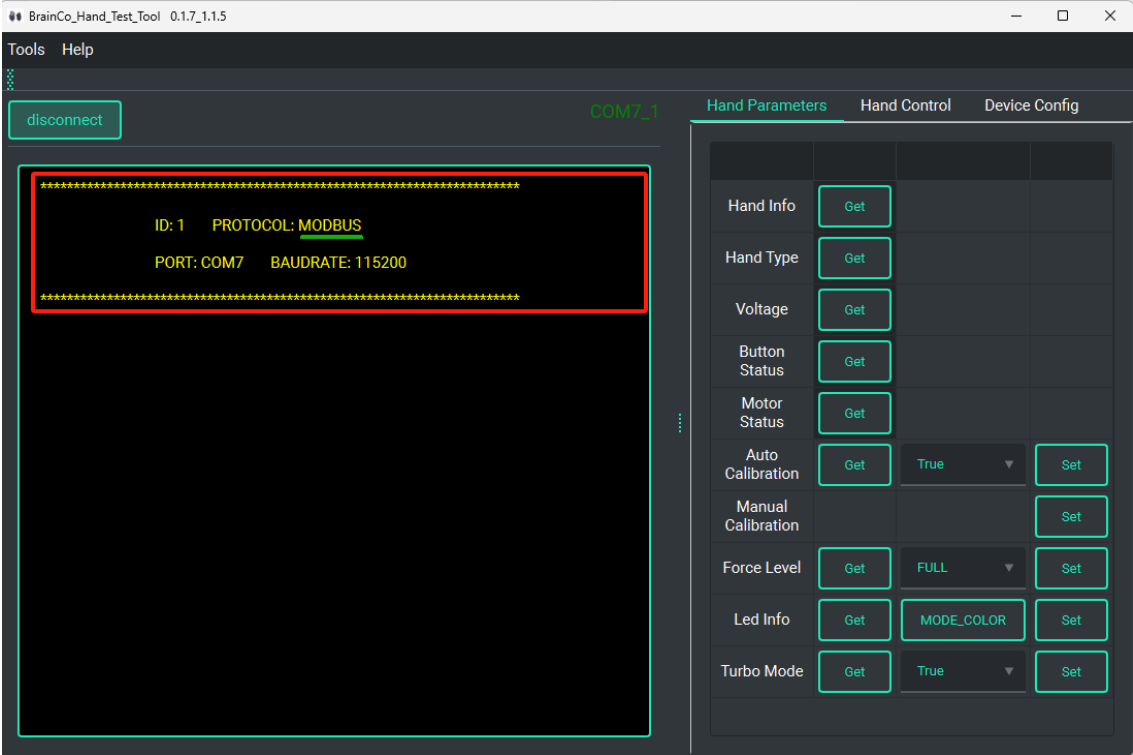
After the desktop tool connects, it displays the protocol detected for the device.
Connect the device
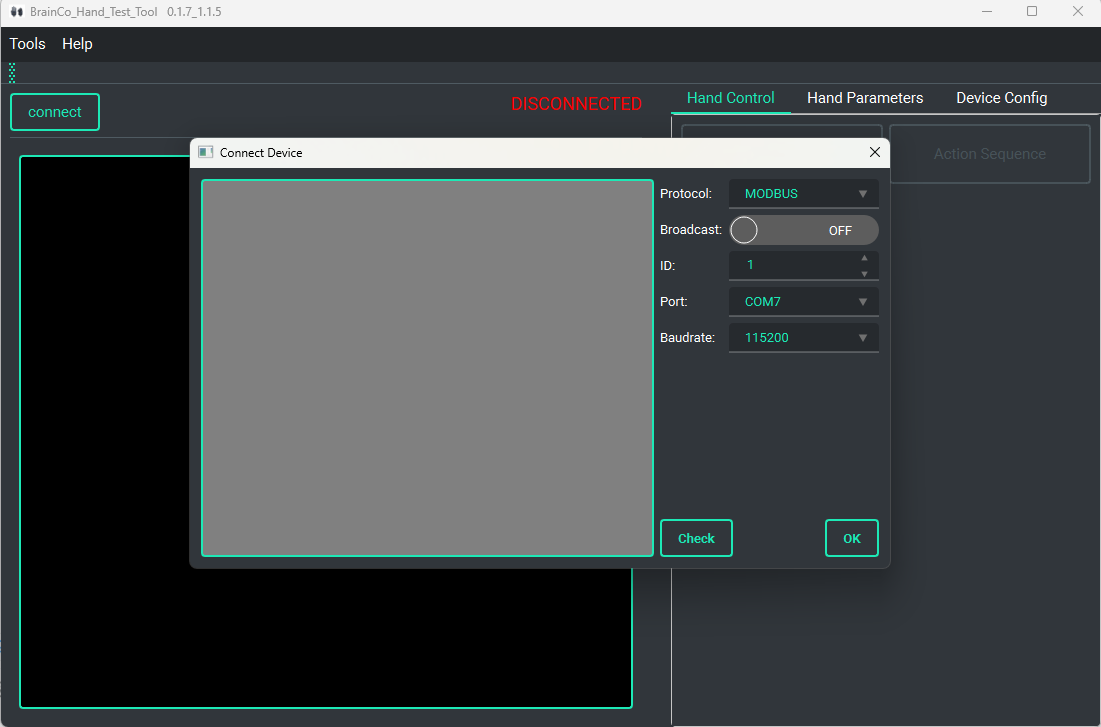
Select Connect, then set the device ID, port, and baud rate. Enable Broadcast only when the same command is intended for every compatible device on the bus.
Connection troubleshooting
- In non-broadcast mode, verify the port and device ID if the connection check fails.
- If automatic connection fails, reconnect the RS-485 adapter or restart the hand. Use Check for a full ID scan only when needed; the scan can take about 10 minutes.
Verify the result