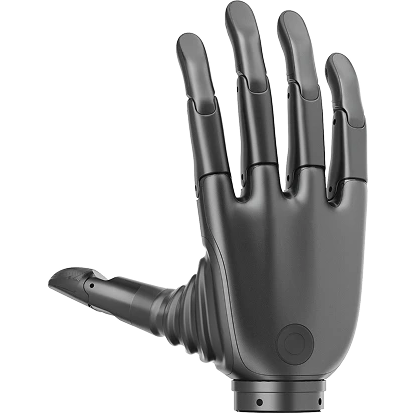
Revo 1 desktop tool
Use the desktop tool to connect a Revo 1 hand, inspect telemetry, send finger commands, edit device settings, manage action sequences, view tactile data, and install firmware.
Before sending motion
Clear the hand workspace and confirm that the selected device ID belongs to the intended hand. Keep a way to remove actuator power immediately.
Connect a device
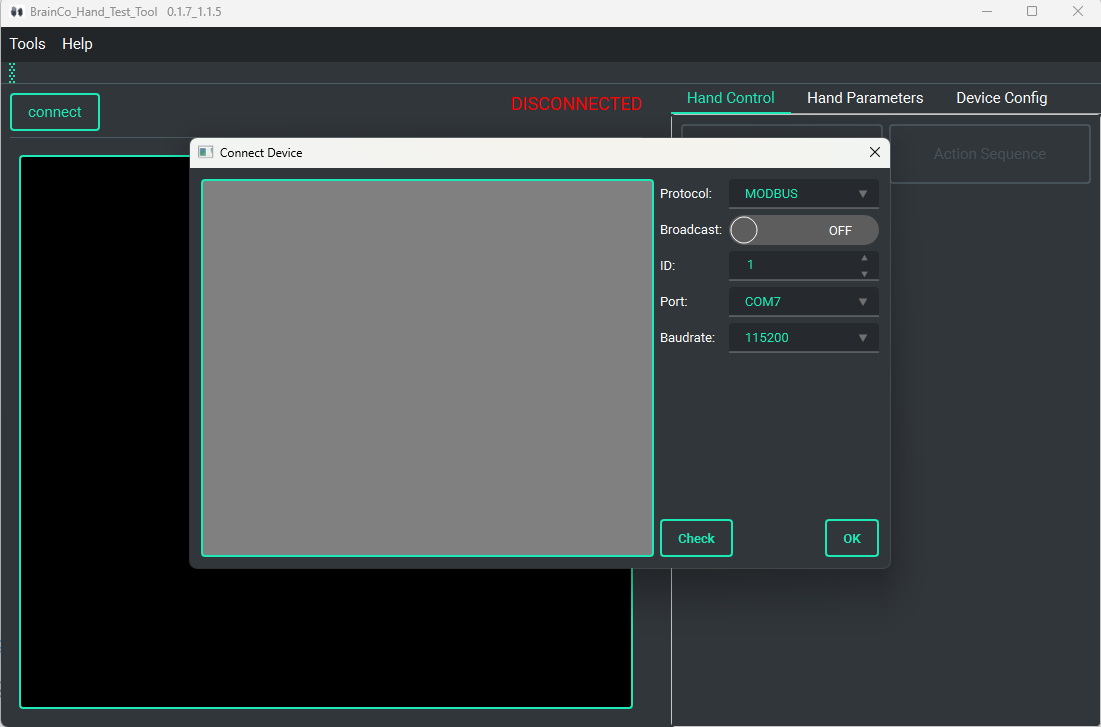
- Select Connect.
- Set the device ID, serial port, and baud rate.
- Select OK.
Enable Broadcast only when the same command is intended for all compatible devices on the bus. In normal addressed mode, the tool checks the connection automatically.
If automatic connection fails, verify the port and ID, reconnect the RS-485 adapter, or restart the hand. Use Check for a full ID scan only when necessary; it can take about 10 minutes.
Control fingers and inspect telemetry
After connecting, select Motor.
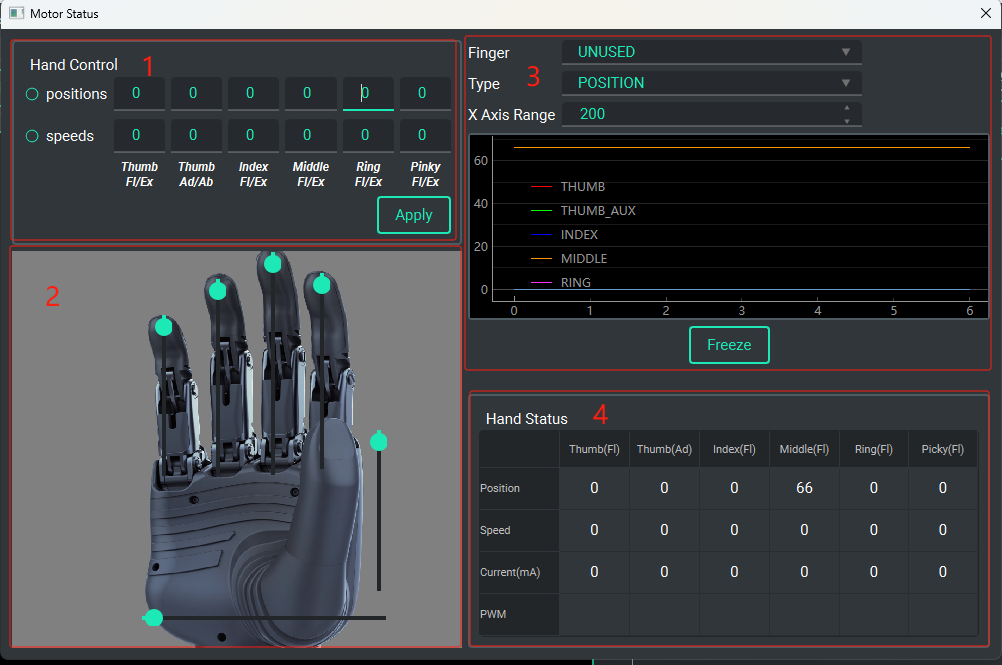
The panel provides:
- Position commands from 0 to 100, or velocity commands from -100 to 100.
- Sliders for direct finger-position control.
- Position, velocity, and current plots for each finger.
- Current finger values.
Start with a small position change and verify the reported state before increasing the range or speed.
Read and change parameters
Open Hand Parameters to read or set supported hand parameters. The command pane shows transmitted and received frames.
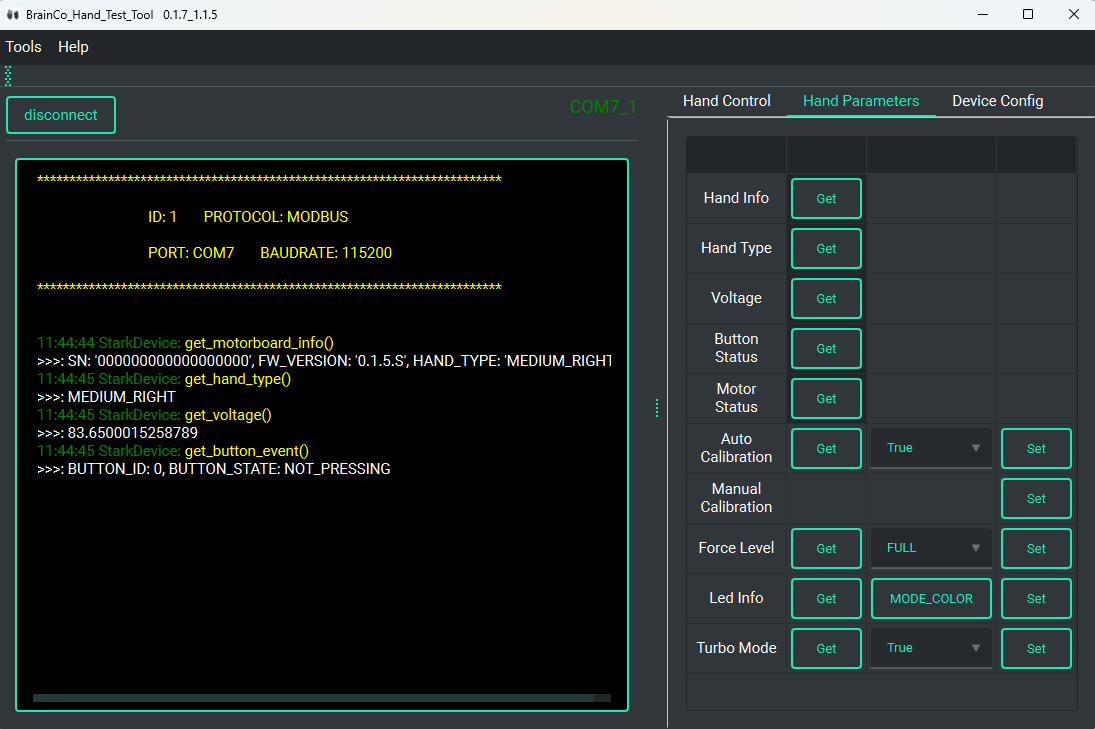
Open Device Config, then select Get Device Config before changing values.
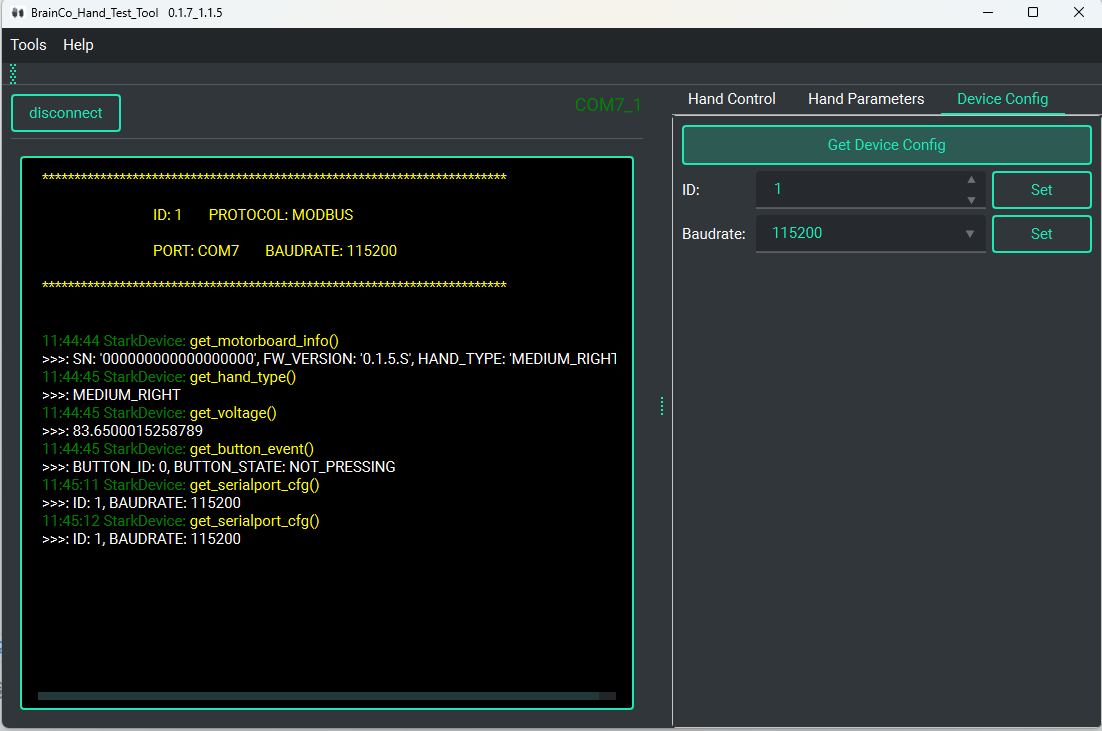
Changing the device ID or baud rate restarts the hand. Record the new values before writing them, then reconnect with the updated settings.
Configure action sequences
Select Action Sequence after connecting.
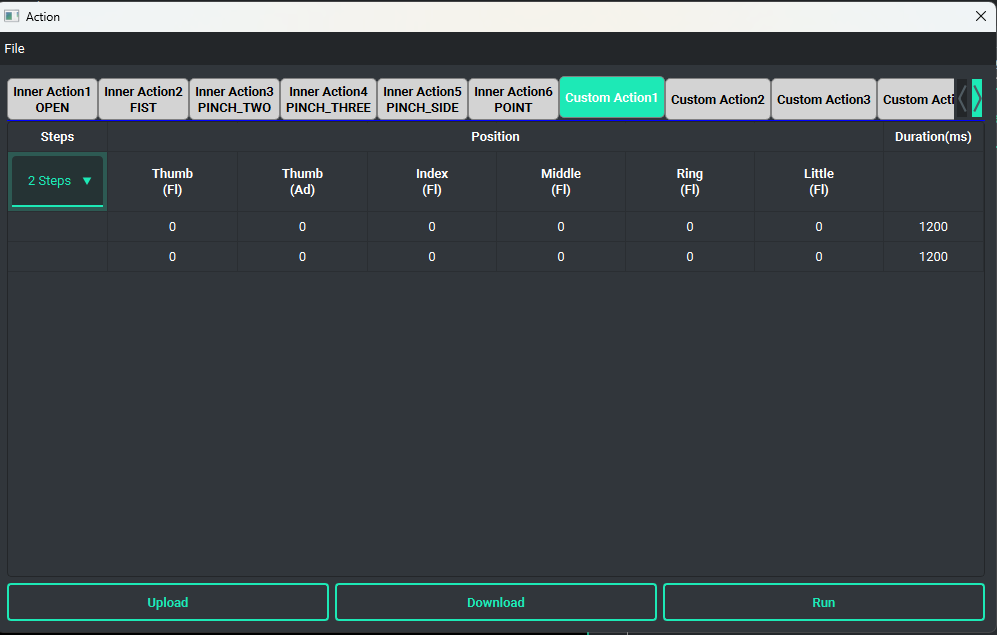
The tool includes six built-in sequences—open hand, fist, two-finger pinch, three-finger pinch, lateral pinch, and point—and six user-defined slots. A sequence can contain up to 32 steps.
For each step, set the target finger positions and duration. Then:
- Download writes the table to the hand. User-defined data is erased when the hand loses power.
- Upload reads the selected sequence from the hand.
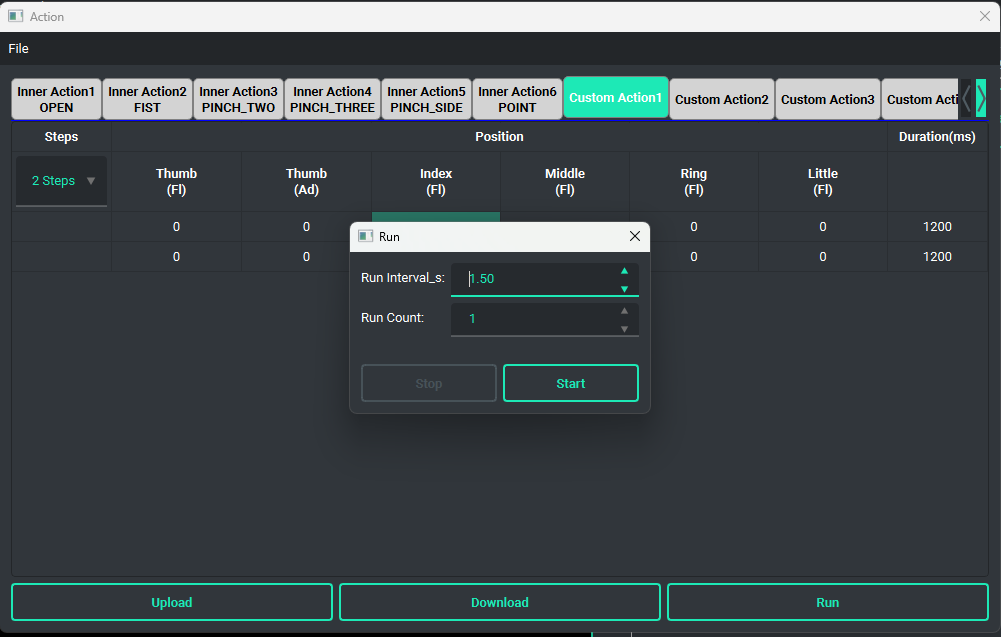
- Run executes the sequence. Set Run Interval_s and Run Count before starting.
Use File > Open to load an offline sequence file and File > Save As to save the current table.
View tactile data
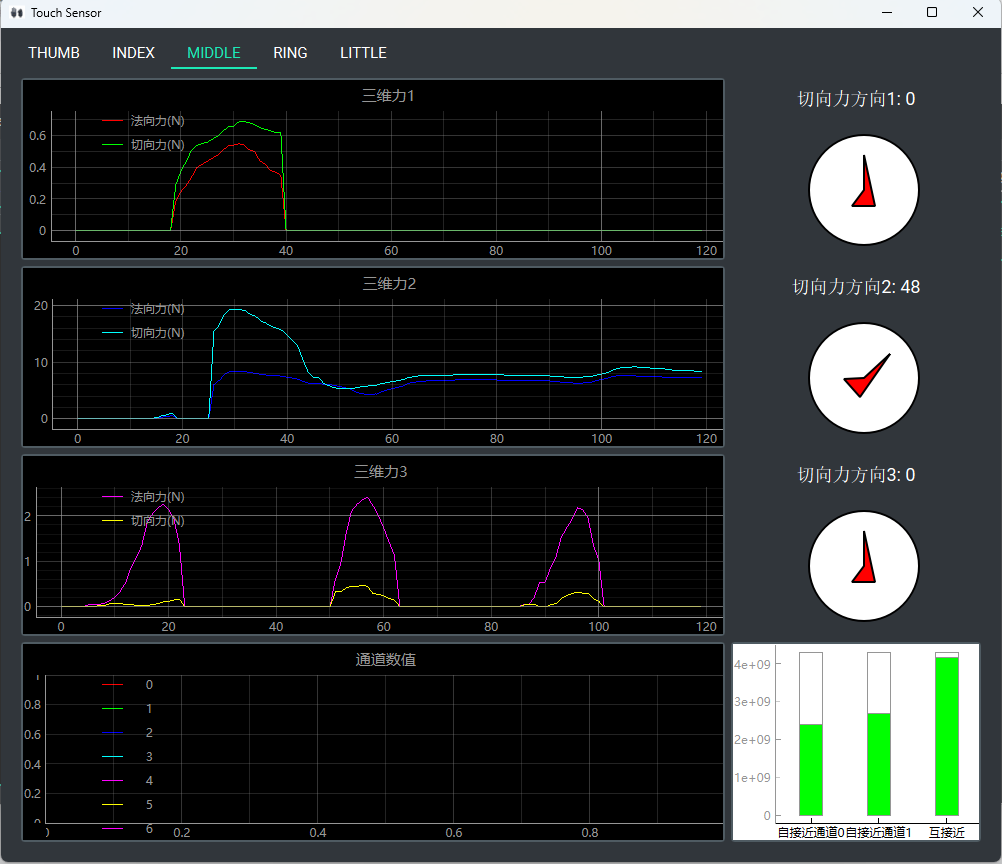
On a supported touch model, select Touch Sensor, then select a finger tab to inspect its sensor data.
Update firmware
Revo 1 firmware updates use a baud rate of 115200.
Match firmware to the hardware
Firmware is SKU-specific. Installing an image for another Revo 1 variant can make the device unusable. Verify the model and firmware package before starting, keep power stable, and do not disconnect the hand during the update.
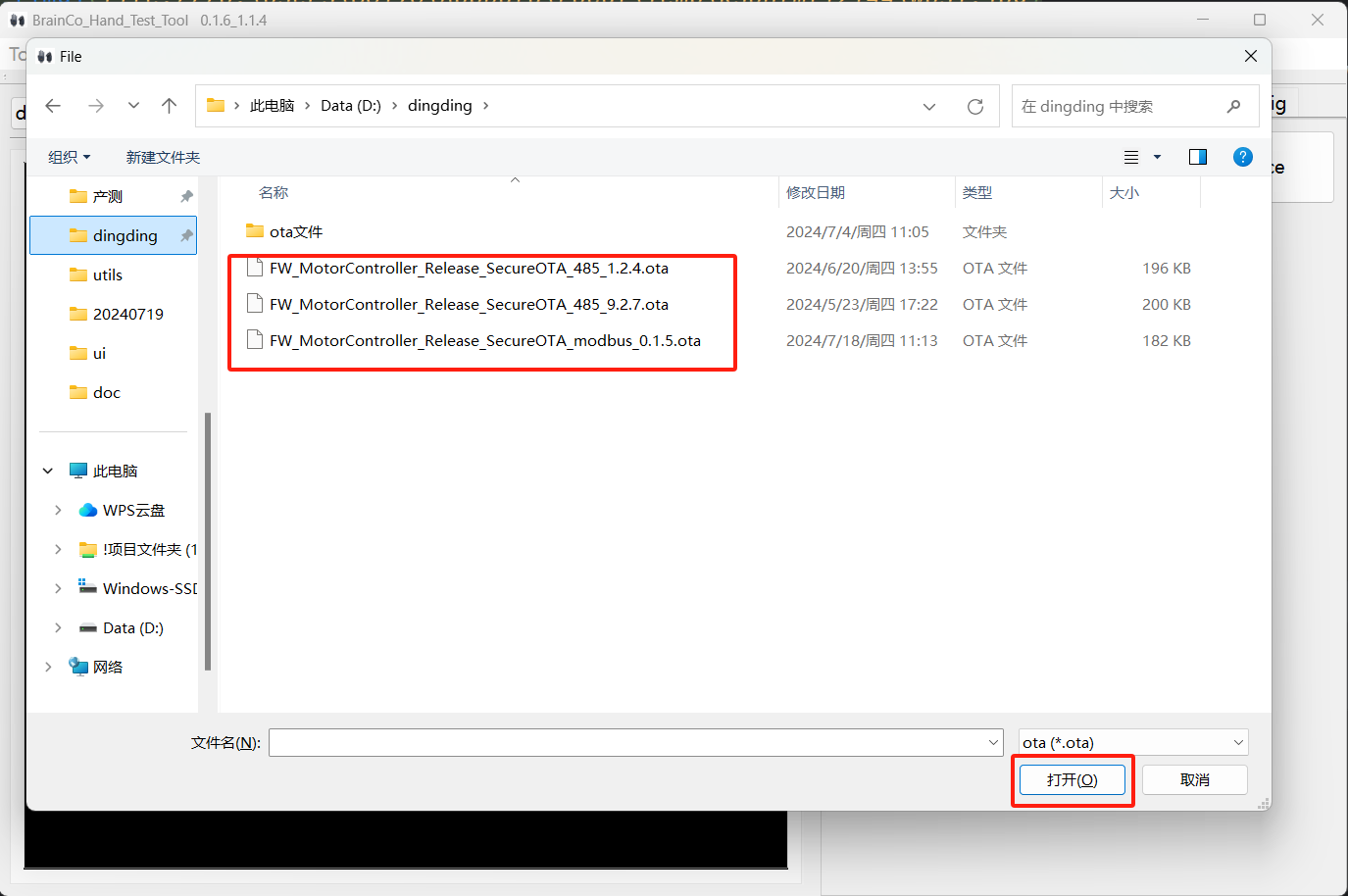
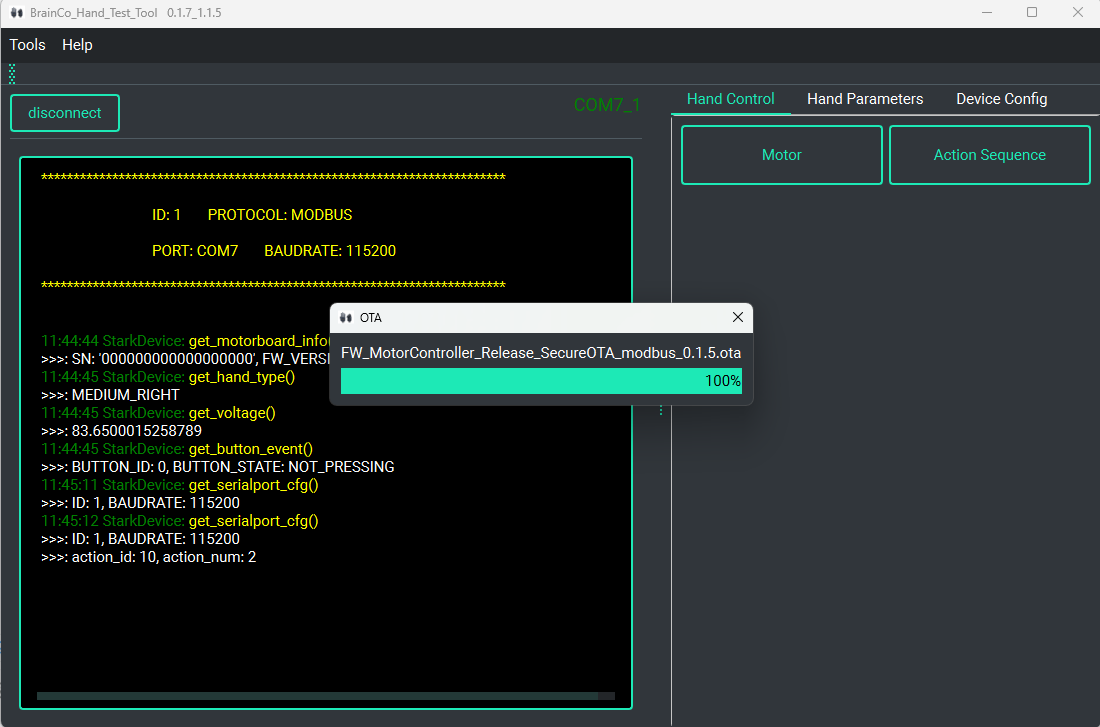
- Connect the hand at
115200. - Open Tools > OTA.
- Select the matching OTA file.
- Wait for completion, then restart the desktop tool and reconnect.
Desktop tool changelog
Revo 1 Basic
1.1.7 (2025-05-12)
- Added OTA-file validation.
- Fixed known issues.
1.1.5 (2024-07-31)
- Added Protobuf and Modbus support.
- Added action-sequence operations, OTA, automatic connection, slider-based motion, documentation links, and device-information reads.
1.0.0
- Initial release.
Revo 1 Touch
0.0.11 (2025-05-12)
- Added OTA-file validation.
0.0.8 (2024-12-05)
- Added tactile-sensor enable controls and state reads.
- Added raw tactile-channel display.
- Automatically enables all tactile sensors when the tactile view opens.
0.0.7 (2024-11-29)
- Initial release.